Actually Cutting the Design on a Laser Cutter
OK, at this point you either could use the unmodified SVG files or you are finished fiddling with the design and want to cut the pieces. The actual mechanics of operating your laser cutter is beyond the scope of these instructions, but I can tell you some information that is likely to be helpful.
How Laser Printers Decide How Cut or Raster Scan
There are two decidedly different things a laser cutter can do. The first is to simply cut all the way through the material. The other is to ‘raster scan’ to burn just the top layer of the material with pixels to create in image of some sort. The way most laser cutters decide which of these to do is to determine if the ‘fill’ of whatever it is drawing is more than 1 pixel wide. If it is WIDER than 1 pixel, it assumes that it is part of a raster image, and thus uses low power. If however the line is less than 1 pixel, then it assumes it should cut all the way through.
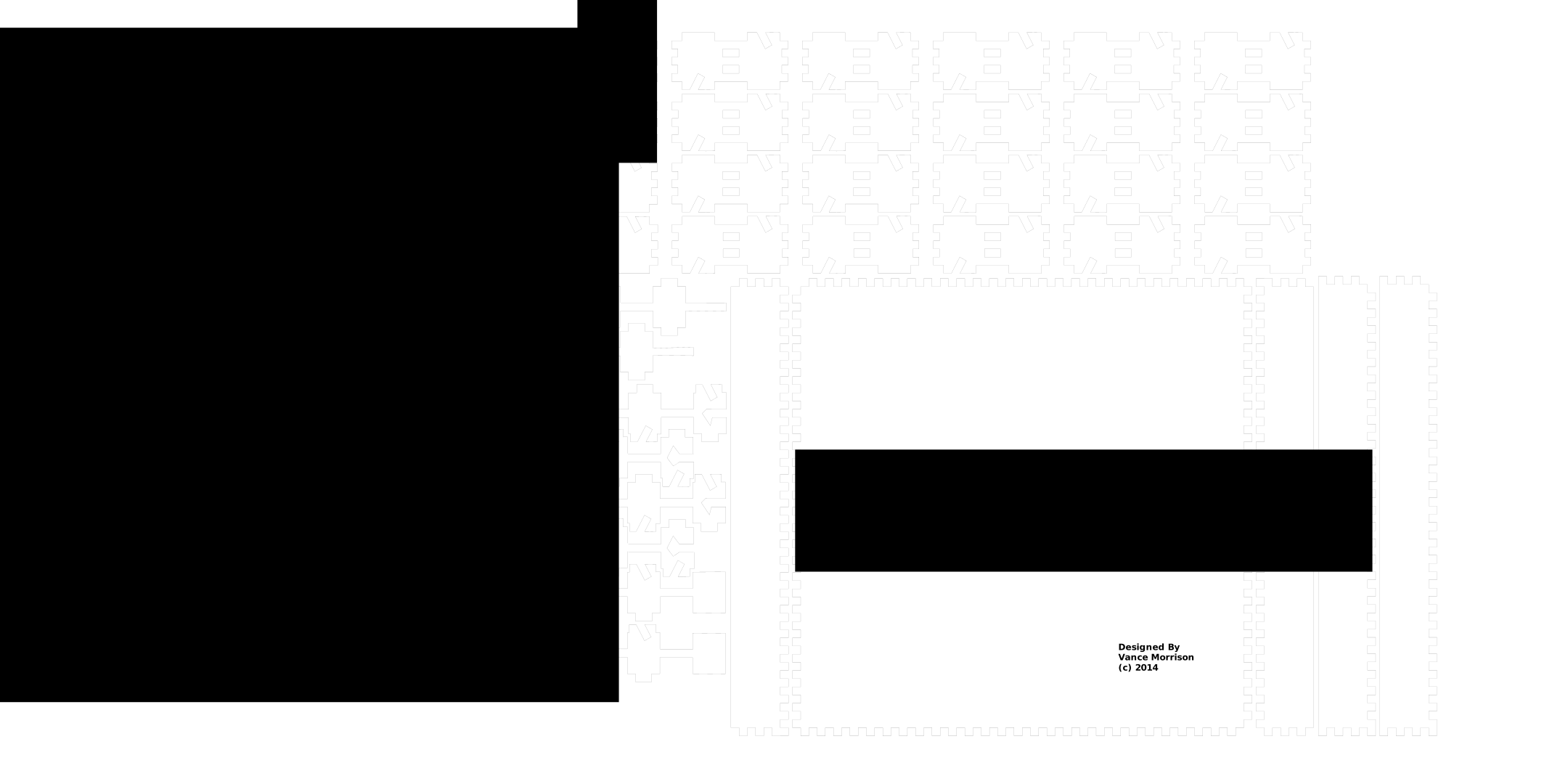
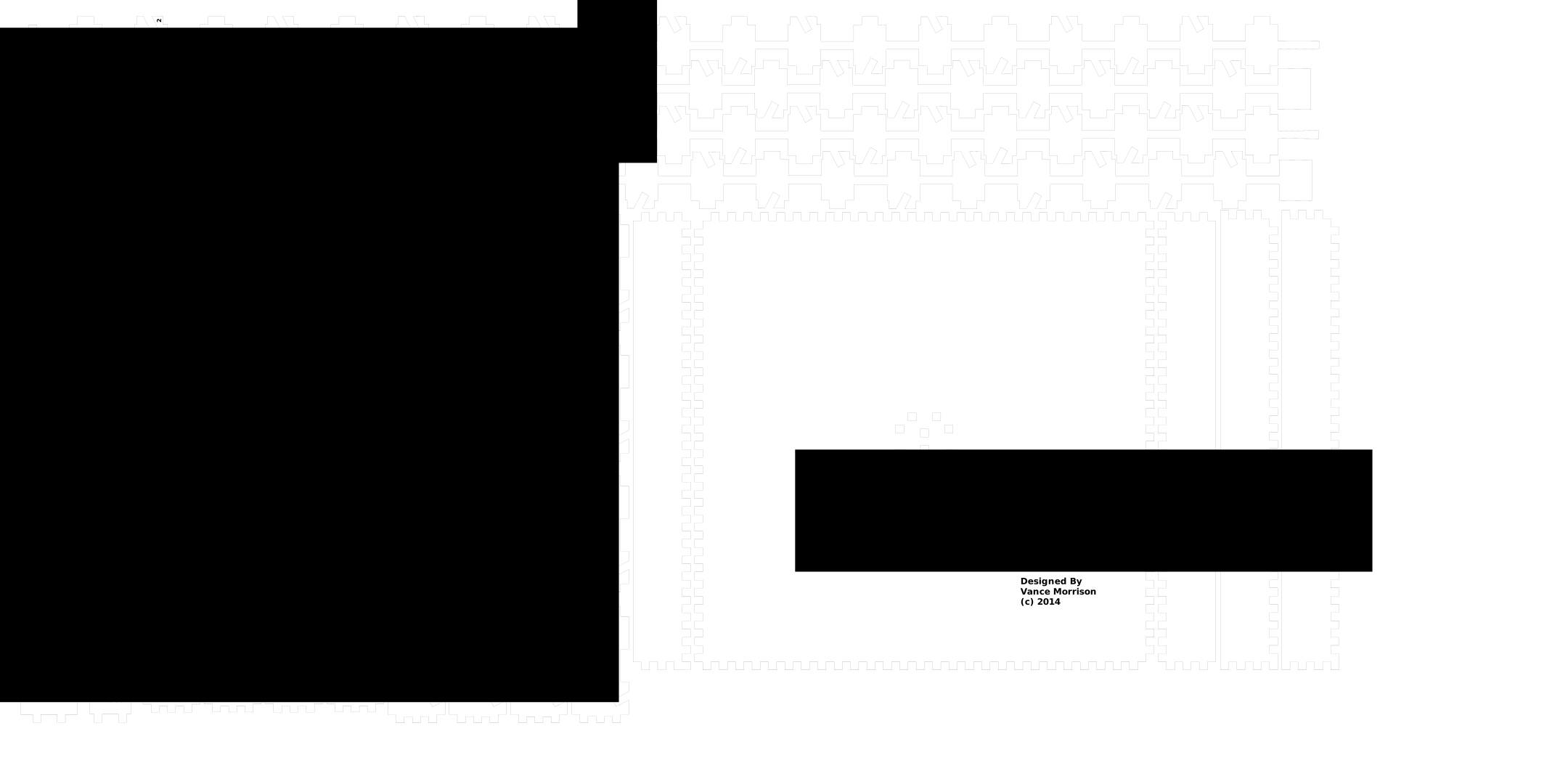
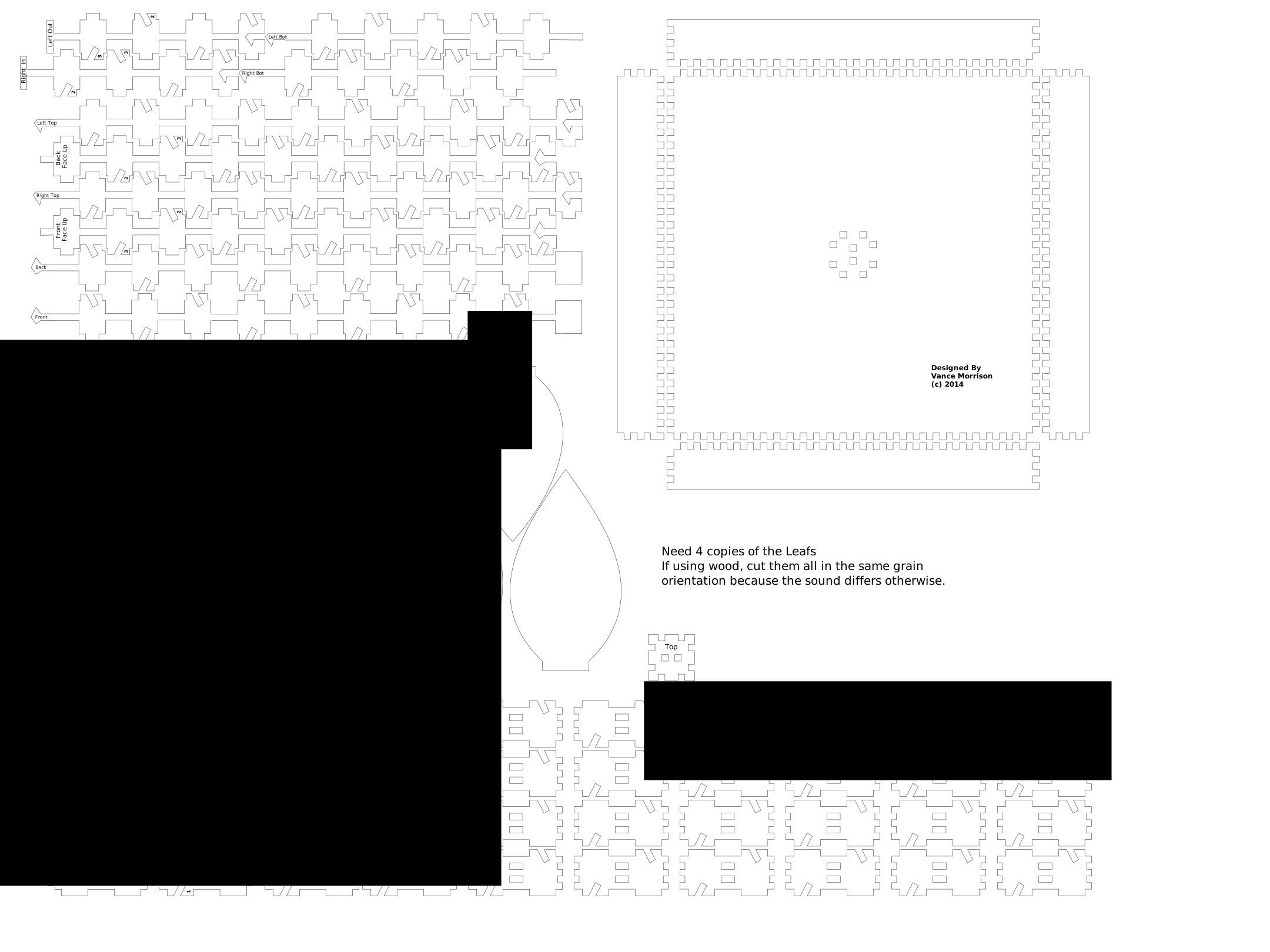
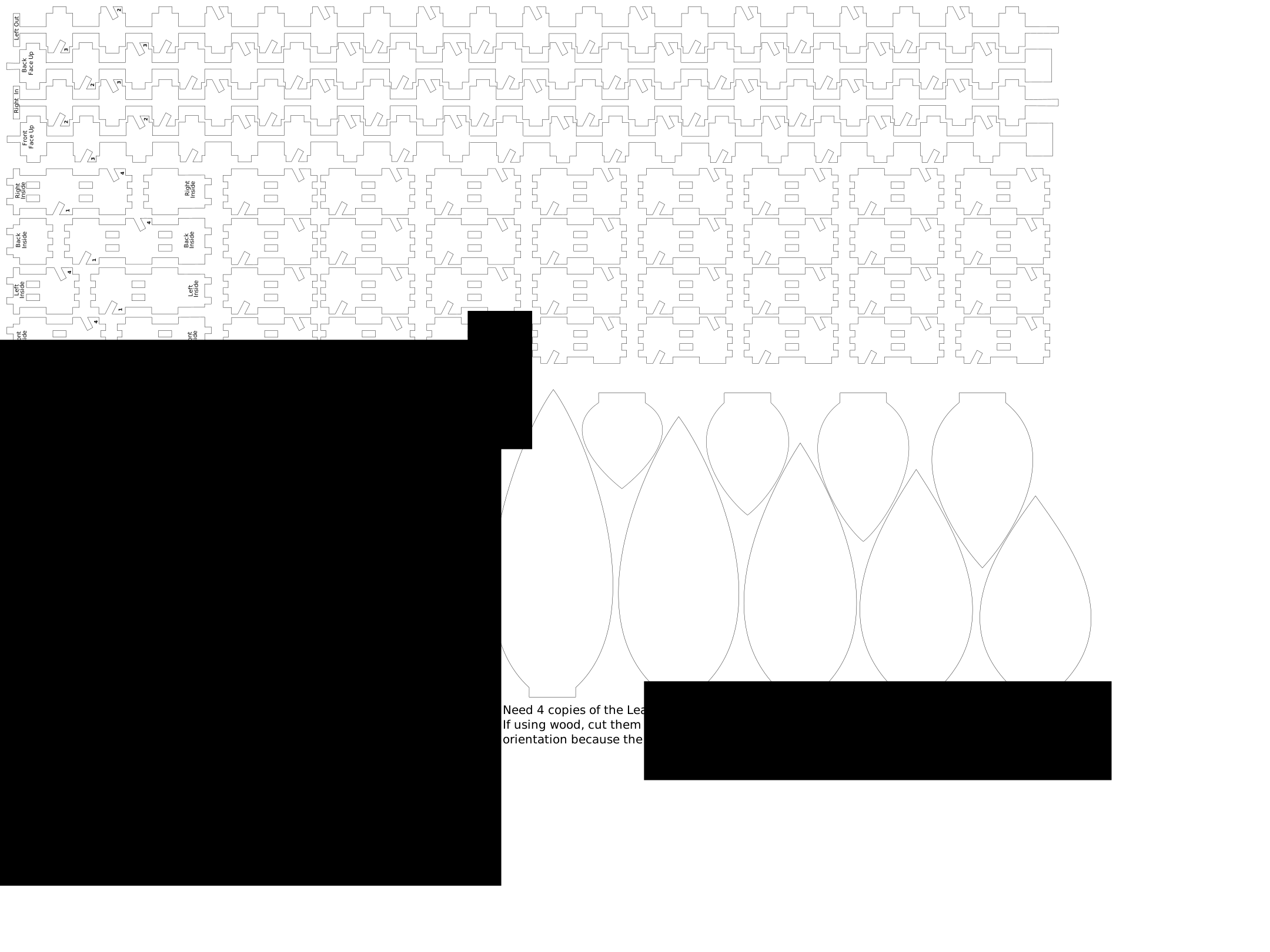
This encoding works well most of the time. Hairline lines are cut, everything else (typically lettering, images and ‘fat’ lines) is raster scanned. The only ‘gotcha’ is that in most drawing programs (like Inkscape) it is inconvenient to use very fine lines because they are hard to see on the drawing. So it is not uncommon to use a fatter line during the design process, and then at the very end select all lines and change the width to something less than 1 pixel (.001 inch works on all but the highest resolution printing). This technique does introduce a ‘gotcha’ when you forget to do this last step of making all the lines thin. Leaves.svg, AllButLeaves.svg, and AllButLeavesLong.svg already have thin lines. MarbleTreeDesign.svg and MarbleTreeDesignLong.svg have fat lines, for easy editing.

InkScape and Laser Cutting
Ideally the way laser cutting should work is that you open the SVG file in Inkscape and the you do a normal print operation from it to the laser cutter (which looks like a printer).
Unfortunately InkScape is really designed for normal printing, not laser cutting. Because of this, at least in the version of Inkscape I used (Version .48) as part of its printing operation it rasterizes all lines, which is problematic for laser cutters, since it means NO cuts will be made.
This may be fixed in future versions of InkScape, but for now this means you will need to use some other program to actually send the drawing to the laser cutter. One possibility is load the SVG file in Inkscape, and then ask InkScape to print it as a PDF file (The ‘save as’ dialog box has a ‘Title’ textbox in which you select the format of the file to save. One of the options is PDF). Once the file is a PDF file, you can open it in Adobe’s reader to actually send the drawing to the laser cutter (which does not rasterize).
In your case, it there may be better ways of doing this. Ultimately all you care about is that you get your SVG file to the cutter in a way that preserves the vector graphics format.
This copy does not include separate PDF files. Leaves.svg and the AllButLeaves files already have the thin cut lines, so a cutter that accepts SVG can use them unchanged. If your cutter wants a PDF, open the SVG in Inkscape and save it as a PDF, as described above.