Marble Tree
| Description | How to laser-cut and assemble a wooden marble tree toy. Design files, material, cutter settings, and step-by-step assembly by Vance Morrison. |
| Author(s) | Vance Morrison |
| Repository | https://github.com/vancem/MarbleTree |
| Copyright | Copyright © 2014-2026 Vance Morrison |
Laser-Cut Marble Tree
By Vance Morrison, 2014
Instructions for cutting and assembling a wooden marble tree on a laser cutter. The design files are included, and each one opens in a browser.
Chapters
- Laser-Cut Marble Tree
- Laser Cutting Instructions
- Material Choice
- Cutting out the Pieces on the Laser Cutter
- Modifying the Laser Cutter Design File
- Actually Cutting the Design on a Laser Cutter
- Laser Cutter Parameters
- Result of the Laser Cutting
- Assembling the spines pieces
- Assembling the 4 Spines into the Trunk Core
- Attaching the Top Shingles
- Glue the Spines Together
- Glue the Bottom Shingles to the Central Core
- Glue the Rest of the Shingles
- Assembling the Bottom Tray
- Attach the Trunk to the Tray
- Glue in the Leaves
- Congratulations You Are Done!
To read or print the whole book as a single page, use the printable version.
Laser-Cut Marble Tree
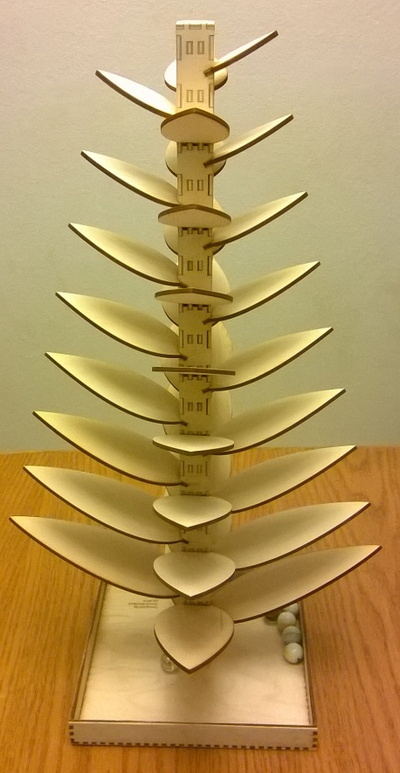
If you have a small child, you will want this toy. Frankly it has a ‘coolness’ factor for all ages, but it is absolutely irresistible for 1–5 year-old children. Place it in front of the child (with marbles in the tray), and in less than a minute the child will have figured out how to use it.
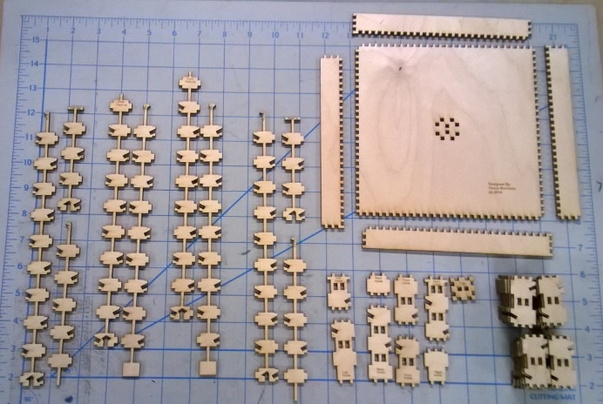
I had seen marble trees for the first time over a decade ago at a friend’s house. I immediately decided to build one at home with a table saw and a scroll saw. In fact, I built several of these for various nieces and nephews (our own kids were already out of the prime age). Several years later I got access to a laser cutter and started to wonder if you could build one using ONLY a laser cutter. Obviously, you can easily cut the leaves and the base with a laser cutter, but the trunk was a challenge. After some thought I decided it was possible by having a central ‘spine’ on which ‘tiles’ could be hung. Here you see all the pieces after laser cutting but before assembly.
| Pieces after laser cutting | Finished marble tree |
|---|---|
 |
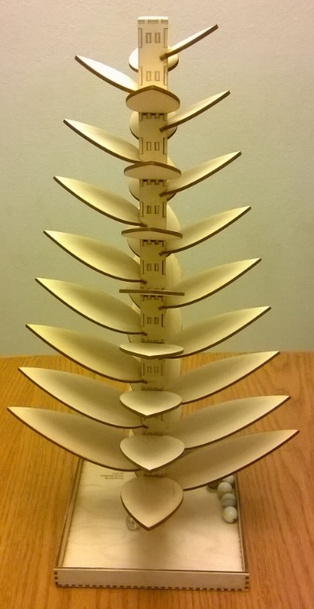 |
The long pieces on the left of that photo interlock with each other and give the center stalk its strength. The photo on the right is the finished tree. There are over 40 tiles that are ‘hung’ on the spine to simulate a solid center stalk with groves that are cut into the faces at a compound angle (tipping each leaf up but also tilted so a marble on the leaf will want to roll around the stalk). The fact that you could make this using a laser cutter (that only can cut thin material and only at 90 degrees), is very surprising (at least to me).

The result is quite attractive. The central spine does show through as small boxes at the center of each tile, and the burnt edges left by the laser cutter give it a rustic vibe.
The result is quite unique and is a wonderful gift for children of all ages (including some decades old).
The xylophone-like sounds it makes are just enchanting, and your biggest problem will be taking it away because you want some quiet. These two short films show it running.
One marble.
Many marbles.
Because it uses marbles, and marbles are a swallowing hazard, you have to supervise young children until they can be trusted not to put marbles in their mouth. In my experience, the toy tends to be interesting enough that kids would rather put the marbles on the tree. Still, please supervise.
Vance Morrison
Laser Cutting Instructions
The marble tree can be built in basically two ways
- You can cut out the pieces using a table saw and a scroll saw (old school).
- You can cut out all the pieces using a laser cutter.
These instructions are for the laser cutting option.
It takes about 2-3 hours to assemble the toy after all the pieces have been laser cut. Typically it takes about 40-60 min of actual laser cut time to cut all the pieces.
You will need 3.5-4 square feet of 1/8 plywood, sandpaper, wood glue some rubber bands (helps when gluing) and access to a laser cutter. Having a glue brush helps quite a bit and is recommended.
Material Choice
I have always made the marble tree out of wood. In theory you can also make it out of acrylic plastic sheet. I have done some experimenting here, and it should work, but from what I can tell, acrylic does not make as nice a sound (wood really does make a pleasant xylophone sound, acrylic is ‘duller’).
So I recommend wood. The unmodified plans are for 1/8” plywood. Home improvement stores (e.g. Lowes or Home Depot) typically don’t sell plywood in this thickness, you have to go to a ‘real’ lumber yard. In the Seattle area, Dunn lumber sells a variety of 1/8 in plywood (in particular they sell 3’ x 8’ oak ‘Door Skins’ that I have used personally). In Seattle there is also Crosscut lumber which sells an even bigger variety of very nice wood (in particular thy sell 3mm (close enough to 1/8) 'baltic birch' 5’x5’ sheets). You should be paying somewhere in the neighborhood of $.70 to $1 per square foot, but you may be buying as much as a 4’x 8’ sheet.
Finally, if you don’t want to bother going to the lumber yard, you can buy the correct plywood online at www.amazon.com. I have seen 10 sheets that are 1’ x 2’ sold for about $40. Just search for ‘hardwood plywood’ and look for 1/8” thickness. Note that these instructions have laid out the pieces so that they fit on two 1’ x 2’ sheets of plywood. You can use smaller pieces of wood (e.g. four 1’ x 1’) if you fiddle with the layout, but I leave that to your ingenuity.
If you minimize waste, the marble tree needs 3.5 square feet of material, however, here we ‘round up’ to needing two 1’ x 2’ sheets of plywood, so you end up using 4 square feet for one marble tree. Thus a 3’ x 8’ door skin can make 6 trees, and a 4’x8’ sheet will make 8.
Note that the cutter plans are designed for specifically 1/8”. However often what you are buying is just ‘close’ (e.g. 3mm, or 2.6mm or whatever). This is OK BUT YOU MUST SCALE THE DESIGN TO USE IT. The design has ‘slots’ in it that need to be the thickness of the wood, so if your wood is thinner, it will only fit ‘sloppily’. You fix this by scaling the design before you cut it (See compensating for thickness below). If you want to avoid this complication, simply make sure you buy TRUE 1/8” material.
Finally you can buy ¼ plywood and scale up the design, all the pieces will still fit in a 24” x 18” laser cutter. It will make something twice as big, which will stand about 3-4’ tall (and you will probably want to use big marbles).
Cutting out the Pieces on the Laser Cutter
Getting the Design Files
The design files are part of this book. Click a file to open the SVG in your browser, or save it and send it to the laser cutter. To download every file at once, use DesignFiles.zip.
DesignFiles.zip is that same set of files, for when you want them all in one download.
Determining What Design Files you Need
There is more than one design file because there are variations on the design and there are too many parts to print on one sheet of plywood so you need to print it as two pieces. In the simplest possible case you only need the following two files
- Leaves.svg – This contains a layout for all the leaves of the tree (and one extra piece), laid out on for a 1’ x 2’ piece of material.
- AllButLeaves.svg – This contains a layout of everything else needed again, laid out on a 1’ x 2’ piece of material.


Thus if you buy/cut two 1’ x 2’ x 1/8” pieces of plywood you can simply print these two files. This is what the rest of the instructions illustrate.
The design above goes to some trouble to break the long ‘spine’ of the tree into pieces so that no piece is longer than 1 foot. This was to allow scaling up (e.g. using ¼ material), and to allow small pieces of wood/plastic to be used. It is also convenient if you wish to mail the unassembled tree to a friend for assembly as it is easier to find boxes that fit 1’ things rather than 2’ things. However, breaking the spin into pieces does slightly complicate assembly (you have to glue together the spine pieces). If you have 1’ x 2’ sheets you can fit the splines on the sheet without breaking them into pieces, and thus avoid the complication of reassembling them. To handle this case you can simply substitute the following file for AllButLeaves.svg.
- AllButLeavesLong.svg - Like its names implies it contains all the pieces except the leaves but the spine pieces are in one piece (they are long).

Finally, while breaking the project into two files is convenient for actual printing, it is inconvenient for design, since you would like all the pieces to be in a single file. So we also include the following files that have all the pieces in a single file and are meant to be used when modifying the design in a significant way. They are there mostly for advanced users who want to fiddle with the design, so you may not need them.
- MarbleTreeDesign.svg - All the pieces need in one file, SVG file. The spines are broken into pieces.
- MarbleTreeDesignLong.svg – All the pieces needed in one SVG. The spines are one long piece
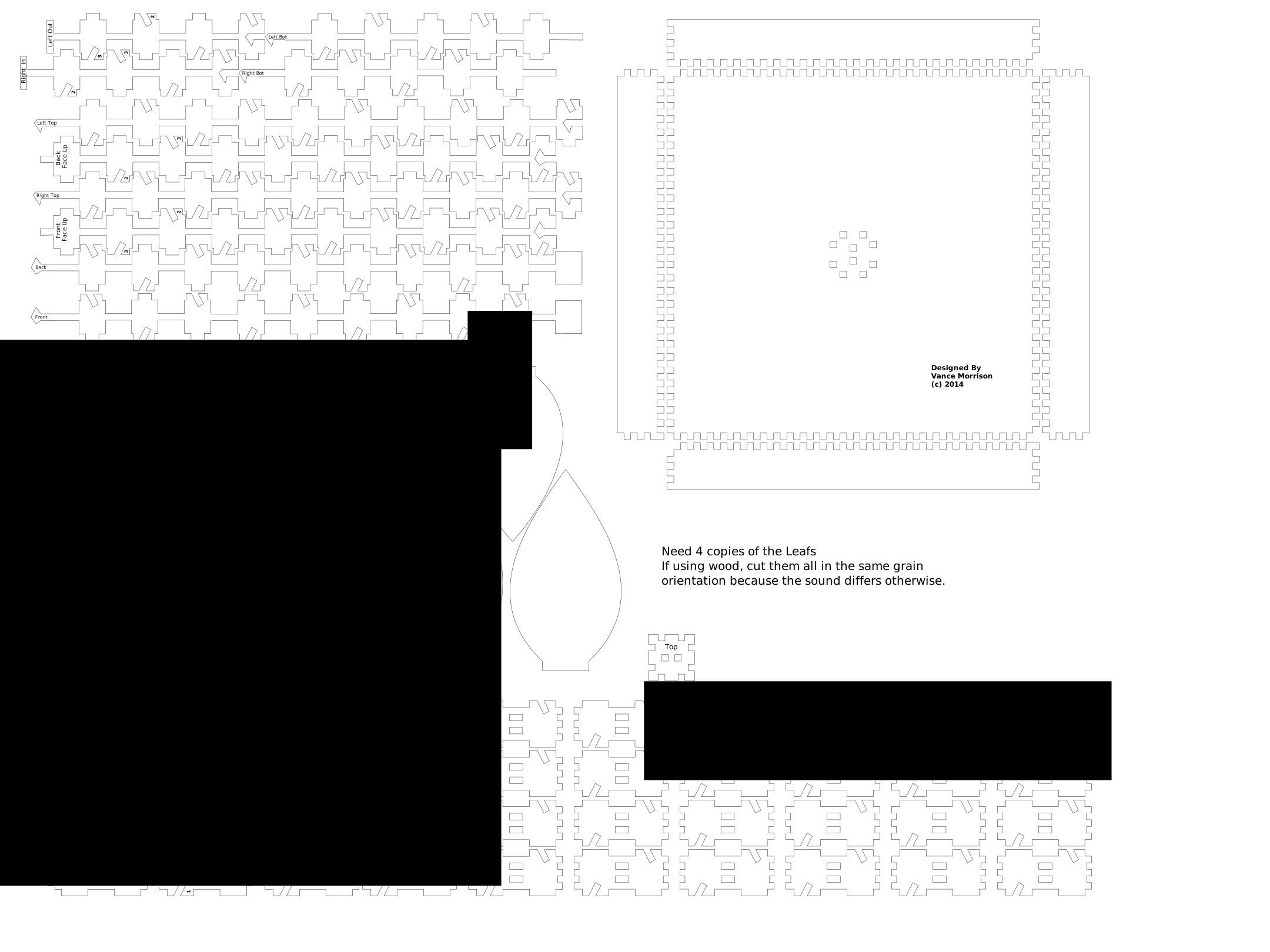
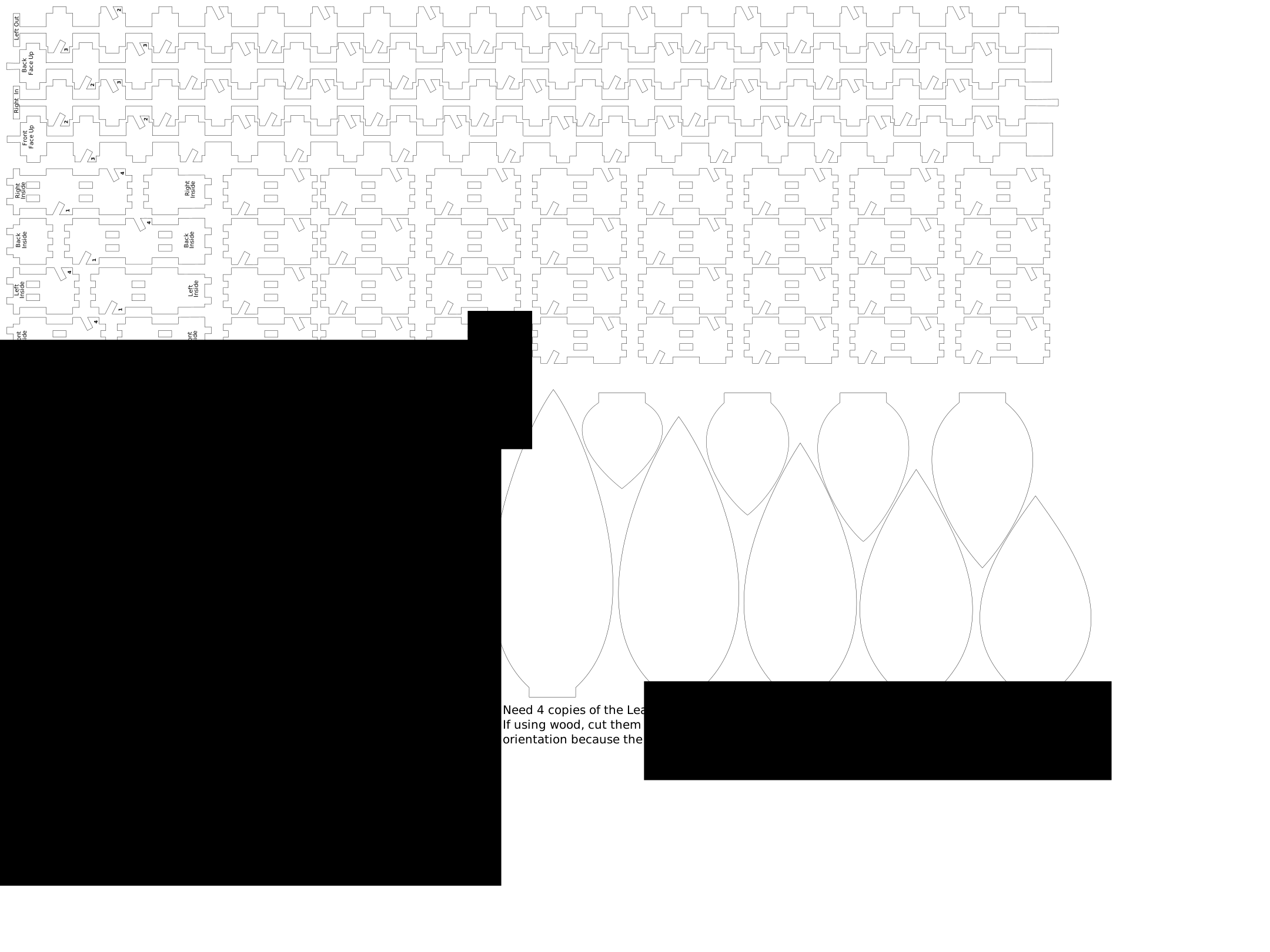
These MarbleTreeDesign* files are optimized for editing. In particular it is hard to see very fine lines in the editor, so the line with in these designs files are .05” rather than .001”. This MUST BE CHANGED BEFORE PRINTING. You need to select all objects, and set the line width to .001” (see below).
Modifying the Laser Cutter Design File
If you have exactly 1’ x 2’ x 1/8” plywood, you will not need to modify the design at all and you can skip this step. However it is reasonably likely that you may need to scale or rearrange the pieces to fit the material you have. You may also make mistakes when cutting, and need to re-cut just a few of the pieces. You may also wish to personalize the tree by adding text that will be rasterized onto the base or the leaves. For all these cases, you will want to modify the SVG files that represent the design.
SVG stands for Scalable Vector Graphics file, and is a straightforward XML (text) file that describes lines, circles, splines and text in a way that can scaled to any size without losing resolution (unlike bitmap technologies). SVG files can be read by web browsers directly (it is an internet standard), and just about any CAD program should have the ability to read SVG files.
There is a program called InkScape that can be downloaded from the web (see https://inkscape.org) that directly edits SVG files (SVG is its native file format, but it also can read or write out in other formats including PDF, etc). Simply download and launch Inkscape and ask it to open one any of the SVG files to edit it. The program has good help/tutorial documentation, but here is a quick cheat sheet to get you going quickly.
- There is a toolbar on the left side. By default it is on the ‘arrow’ icon, which is the ‘select’ which is a good default, and for simple adjustments you may never need anything else. In this mode if you click on an object, it selects it, once selected you can move it (there are also resize handles)
- Ctrl-Z – undo (You will be very happy to know this when you accidentally type something)
-
- zoom in
-
- zoom out
- Ctrl-A - selects all objects (useful for centering the design on the sheet).
- Alt-O – Opens the object menu. Use things include rotating, flipping horizontally or vertically, and Transforming (used to scale thickness).
- Shift- Ctrl – F – Fill and Stroke. This opens a tabbed pane, and one of these tabs is the ‘stroke style’ of the lines. One of the attributes you can set is the line thickness. This is important because the lines need to be thin (less than 1 pixel) for the cutter to recognize it as a cut. Thus you may wish to select all objects (Ctrl-A) and set their line thickeness to .001” This insures that lines are thin enough to be interpreted as cuts.
- Shift-Ctrl-G Ungroup object – I have grouped many of the pieces so that you can move them easily as a group. However you may need to break up the groups for it to fit in a particular space.
- Ctrl-G – Group objects – It is a good idea to group the objects back again after you have finished whatever edit required you to ungroup them.
Orienting the leaves.
If you fiddle with the leaves (for example you may have broken a leave and need to print a single new one), there is one ‘gotcha’ I want you to alert you to. Plywood has different stiffness depending on the direction of the grain. What this means is that it is important that all the leaves of any marble tree are all oriented in the same direction with respect to the grain of the wood. Thus don’t cut one leaf across the grain and one with the grain. If you do this they will ‘ring’ differently and instead of getting a pleasant descending scale you get a discordant set of notes.
Compensating for thickness
The SVG file is designed for 1/8” plywood. However the design does scale, and thus if you simply scaled the entire design by 2, you could make it out of ¼” plywood. Conversely, most plastic is slightly less than 1/8” closer to 1/10”, so you would want to scale the design so that it works for that thickness. This is very easy to do in Inkscape. Before you do this you have to calculate the % scaling that you will need. To do this:
- Measure the thickness of your material. Ideally you do this with a dial or Vernier caliper that allows you to very accurately measure small distances. If you don’t have this you can use the ‘speced’ thickness. For example some plywood say it is 2.6 mm = .102” thick.
- Calculate the scale percentage as (TrueThickness/.125”) * 100 . Thus the case of 2.6mm, it would be (.102”/.125”)* 100 = 81.6 %
- Note that because wood naturally varies a bit, you don't want to be too precise. You want a little bit of 'wiggle room' so that the leaves don't bind. Thus once you have calculated the % above you will want to make it about 3% larger than calculated so that you have this extra space. 3% is enough for this but won't cause 'wobble'.
Once you have this number you can scale your design by doing
- select everything (Ctrl-A)
- From the Object Menu select the Transform menu item. This will bring up a ‘transform’ pane on the right hand side of the screen.
- Select the ‘scale’ tab.
- Check the ‘scale proportionally’ checkbox.
- Enter a % scale factor calculated above (e.g. 81.6)
- Click the Apply button.
If you don’t have a dial caliper you can also do this by trial and error by only printing one of the trunk shingles and seeing if the material slides nicely into the slot. If it is too big scale it by 95%. If it is too small scale it by 105%. Keep making adjustments until you don’t’ have to force the material into the slot (too small) and it does not wobble (too big).
Even if you do have a dial caliper, I would recommend printing a test to confirm that it is perfect before committing to the 20 min or to print the pieces.
Actually Cutting the Design on a Laser Cutter
OK, at this point you either could use the unmodified SVG files or you are finished fiddling with the design and want to cut the pieces. The actual mechanics of operating your laser cutter is beyond the scope of these instructions, but I can tell you some information that is likely to be helpful.
How Laser Printers Decide How Cut or Raster Scan
There are two decidedly different things a laser cutter can do. The first is to simply cut all the way through the material. The other is to ‘raster scan’ to burn just the top layer of the material with pixels to create in image of some sort. The way most laser cutters decide which of these to do is to determine if the ‘fill’ of whatever it is drawing is more than 1 pixel wide. If it is WIDER than 1 pixel, it assumes that it is part of a raster image, and thus uses low power. If however the line is less than 1 pixel, then it assumes it should cut all the way through.
This encoding works well most of the time. Hairline lines are cut, everything else (typically lettering, images and ‘fat’ lines) is raster scanned. The only ‘gotcha’ is that in most drawing programs (like Inkscape) it is inconvenient to use very fine lines because they are hard to see on the drawing. So it is not uncommon to use a fatter line during the design process, and then at the very end select all lines and change the width to something less than 1 pixel (.001 inch works on all but the highest resolution printing). This technique does introduce a ‘gotcha’ when you forget to do this last step of making all the lines thin. Leaves.svg, AllButLeaves.svg, and AllButLeavesLong.svg already have thin lines. MarbleTreeDesign.svg and MarbleTreeDesignLong.svg have fat lines, for easy editing.
InkScape and Laser Cutting
Ideally the way laser cutting should work is that you open the SVG file in Inkscape and the you do a normal print operation from it to the laser cutter (which looks like a printer).
Unfortunately InkScape is really designed for normal printing, not laser cutting. Because of this, at least in the version of Inkscape I used (Version .48) as part of its printing operation it rasterizes all lines, which is problematic for laser cutters, since it means NO cuts will be made.
This may be fixed in future versions of InkScape, but for now this means you will need to use some other program to actually send the drawing to the laser cutter. One possibility is load the SVG file in Inkscape, and then ask InkScape to print it as a PDF file (The ‘save as’ dialog box has a ‘Title’ textbox in which you select the format of the file to save. One of the options is PDF). Once the file is a PDF file, you can open it in Adobe’s reader to actually send the drawing to the laser cutter (which does not rasterize).
In your case, it there may be better ways of doing this. Ultimately all you care about is that you get your SVG file to the cutter in a way that preserves the vector graphics format.
This copy does not include separate PDF files. Leaves.svg and the AllButLeaves files already have the thin cut lines, so a cutter that accepts SVG can use them unchanged. If your cutter wants a PDF, open the SVG in Inkscape and save it as a PDF, as described above.
Laser Cutter Parameters
In the 'Print' Menu you should be able to click on a 'Properties' button that will let you set printer-specific parameters for the print. You will typically have to do this before actually sending the job to the laser cutter. The important parameters are
- The size of the sheet (e.g. 24" x 12" for the unmodified files here). If you don't set this, there is a good chance it defaulted to 8.5"x11" and it will try to scale the drawing to that size which you obviously don’t want
- Rasterizing speed and power. This sets how deep text gets engraved into the wood. The higher the power or the slower the speed the deeper the engraving. Parameters that I have used that work well are 100% power and 70% speed.
- Vector speed and power. This must be set high enough that the laser cuts all the way through the material. If is very annoying if this is set too low as you typically end up trying to force the pieces apart and you get a bad edge. Thus it is good to have the power a bit high rather than a bit low. For 1/8 wood, I found that the setting of 22% speed and 100% power work well. There is also a frequency setting, and for wood it should be set low (approx 500).
Result of the Laser Cutting
When you are done laser cutting you should have all the pieces as shown in the photo below.
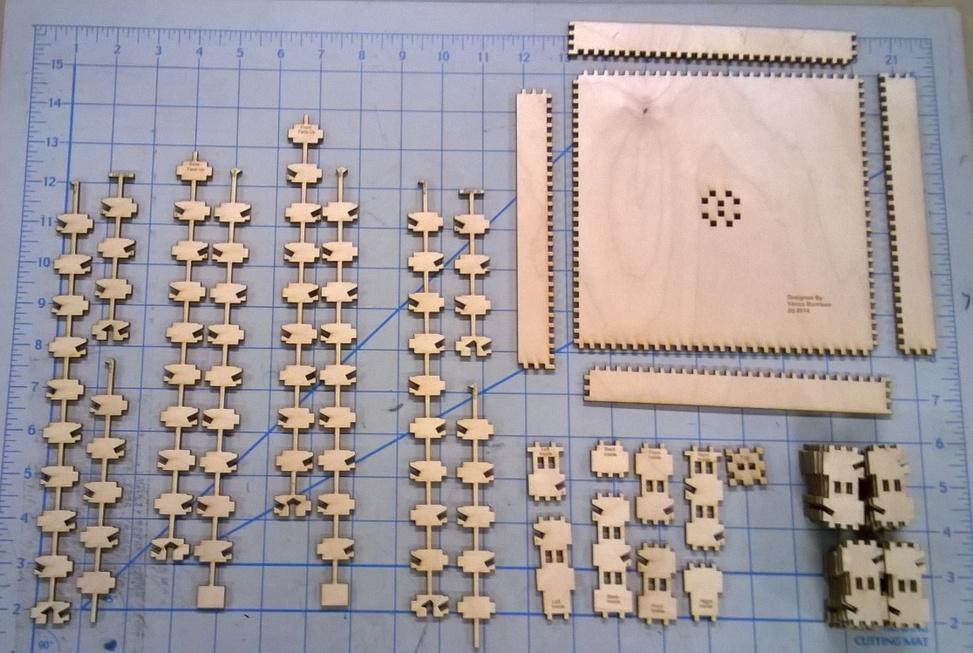
In particular you should have
- A Base, and 4 sides. If you look closely one set of sides (top and bottom) are identical and the other set (left and right) are identical.
- A set of 10 ‘spines’ pieces. They are grouped together above in the way they will be assembled (thus the left and right pieces have 3 parts, and the front and back have 2).
- A set of 8 ‘top and bottom’ shingle pieces. These are shown in the lower center in the image above. They are all labeled and it is a good idea to arrange them as shown (labels up). Notice that the ‘three prong ends mate with the ‘interior’ of the trunk, and the ‘two prong’ ends are the extreme top or bottom of the trunk.
- One ‘top piece’. This is the small square piece with two holes in it next to the pile of trunk pieces and forms the top of the trunk.
- 32 identical ‘shingles’. These form the outside of the trunk
- 4 sets of 9 leaves for a total of 36 leaves (not shown).
Assembling the spines pieces
The marble tree has 4 spine pieces that the out shingles ‘hang’ from. While is possible to cut each of these 4 pieces as a single piece, to allow you use smaller pieces, they have been broken into either 2 or 3 pieces. The first step of assembly is to glue these pieces together to form
All the pieces are labeled (left, right, front back), and all the labels should be up. The tops of all the spines are above the horizontal writing (in the left in the picture below). Dry fit them and they should look like this.
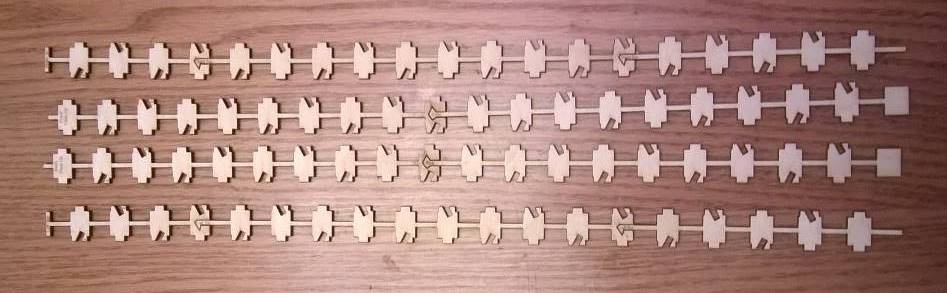
When you have the worked out, simply put some glue around each ‘knob’. It is also a good idea to take a small piece of paper (1/2” by 1/2”) and glue this to each ‘face’ where the knob and socket are (not shown in image above). This is optional, but it does strengthen the joint, and also keeps the spines from sticking to the work surface as the glue dries.
Assembling the 4 Spines into the Trunk Core
Now we have four spines (left, right, front back, which are all the same length. We now need to form the ‘core’ of the trunk.
This is the most critical part, and it is easy to get it wrong. Follow the instructions carefully.
Arrange them as left, back, right as shown here
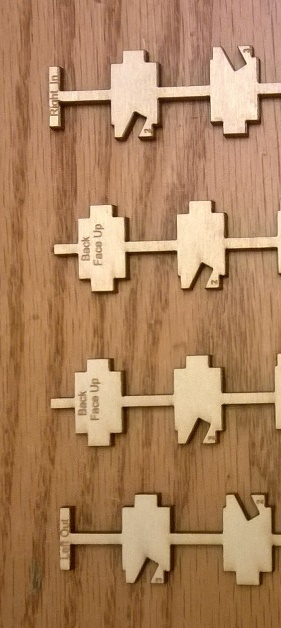
Next place the top piece on top of the bottom piece (thus the lettering on both pieces face up), and then place the left piece on the left (LETTERING OUT (TO THE LEFT), and the right piece on the right (LETTERING IN (TO THE LEFT). If you do this properly you should look like this (expanded so you a read the lettering)
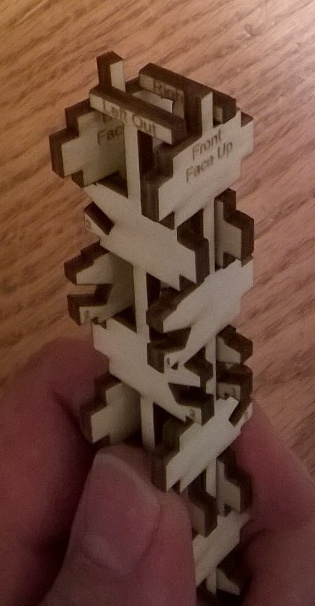
Attaching the Top Shingles
Next we dry fit the top shingles. Start with the left and right top shingles as shown below.
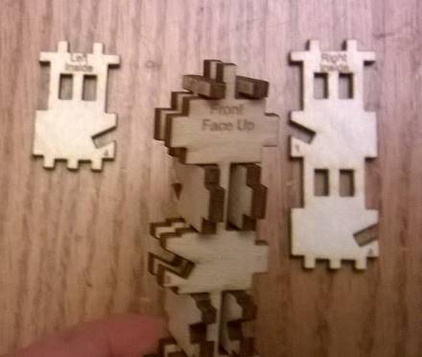
Then attach the left size to the core (LETTERING IN), and the right to the right side (LETTERING IN). It should go on easily as shown below
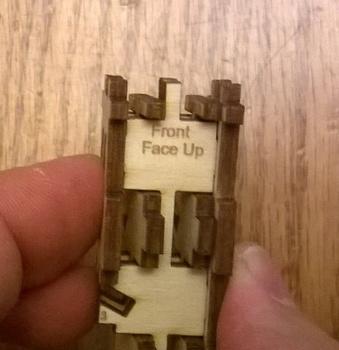
Repeat the process for the front and back pieces. Again the lettering FACES INSIDE. All the pieces should go together easily and the result should look like this looking down from the top.
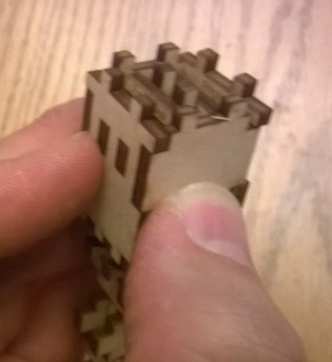
Now we are ready to glue the top pieces together. We will take of the shingles and then put them on again, this time with glue. Basically any place where the shingle and the core touch, you should put dabs of glue. I put the dabs on the core pieces as shown below, but feel free to do it however you like, as long as all joints gets glue.
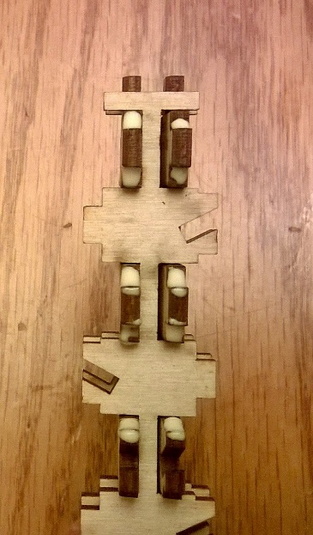
After you have glued on the left and the right piece, you can do the same for the front and back. This image shows the dabs of glue just before the front piece is attached with glue.
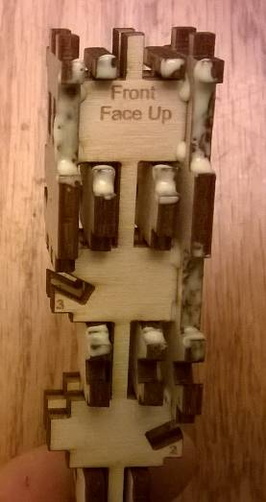
Once you have the top shingles installed around the core, you can put on the top piece. Again dab glue on all places where two pieces touch. The result should look like this.
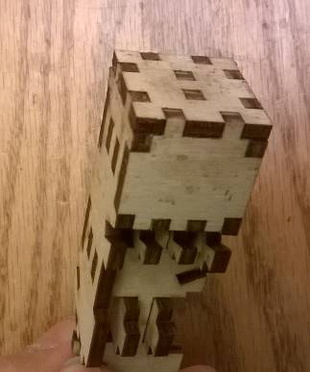
Glue the Spines Together
At this point the spines are held together at the top end but are free at the bottom. If you dab glue where each of the 4 spines touch each other, you can make the central core stronger. Do this now. You can do this as much or as little as you like. It is optional because the central core is stiff enough even without this extra gluing
Glue the Bottom Shingles to the Central Core
Gluing the bottom shingles works exactly like the top shingles. Just make sure you orient them properly ALL LETTERING FACES IN, and of course should go in their labeled place. If you do this right, the longest bottom shingle is on the same face as the shortest top shingle and vise versa. As before dry-fit the pieces and then disassemble and reassemble with glue. After doing this gluing the bottom shingles the trunk will look like this.
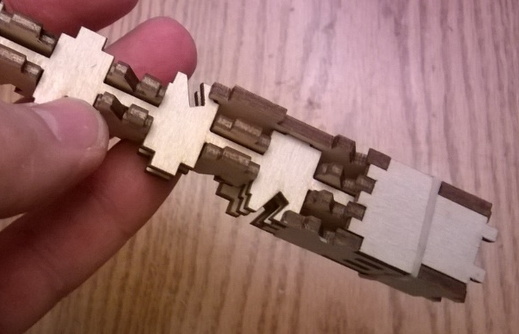
And the trunk as a whole will look like this

Glue the Rest of the Shingles
At this point you just need to glue on the 32 other shingles. It should become very routine at this point. Be sure that you dab glue on ALL surfaces where the shingles touch the core or other shingles. Don’t forget the ‘side’ channels where shingles touch each other (see below), however DON’T put any glue in any of the channels meant for the leaves.
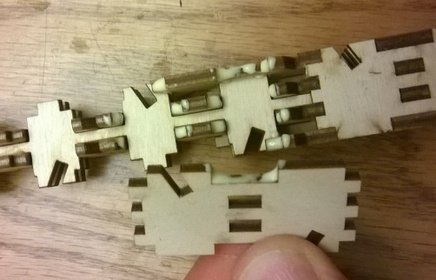
When you are done it should look like this

Sand the Trunk!
Now that the trunk is assembled, you should sand it. DO IT NOW! If you wait, it is basically impossible to sand and it will look A LOT better if it is sanded.
Assembling the Bottom Tray
Sand the pieces!
Once the tray is assembled it is difficult to sand the interior. Thus you want to sand all the pieces of the tray BEFORE you assemble it so that they look nice and feel smooth.
Orient the pieces
Now that the trunk is done, you can assemble the bottom tray. First arrange the pieces as show below (notice how the pieces interlock). The top and bottom are identical (but turned end-for-end), and simmilarly the left and right pieces are identical (and turned end-for-end).
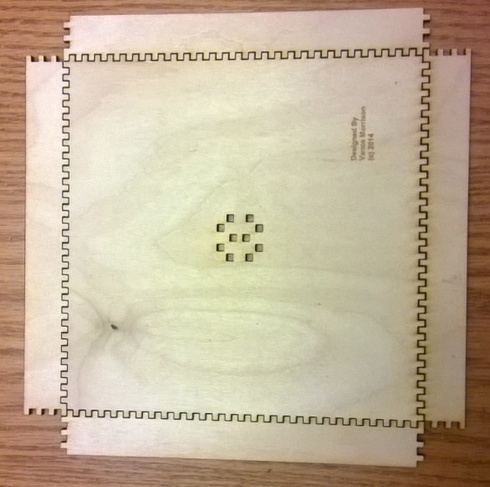
You can then start applying gue to the bottom piece and one of the sides. Be sure to get a good coat of glue to all touching surfaces (A brush is highly recommended, you don’t want dry joints), but because you can’t sand the inside easily, you should avoid excessive glue that will squirt out.
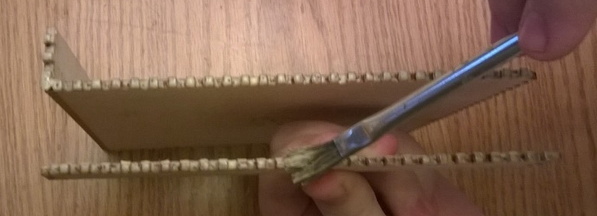
Again, because you can’t and the inside, you will probably want to wipe the inside with a very damp paper towel to remove any excess glue, so it does not discolor the wood after it dries.
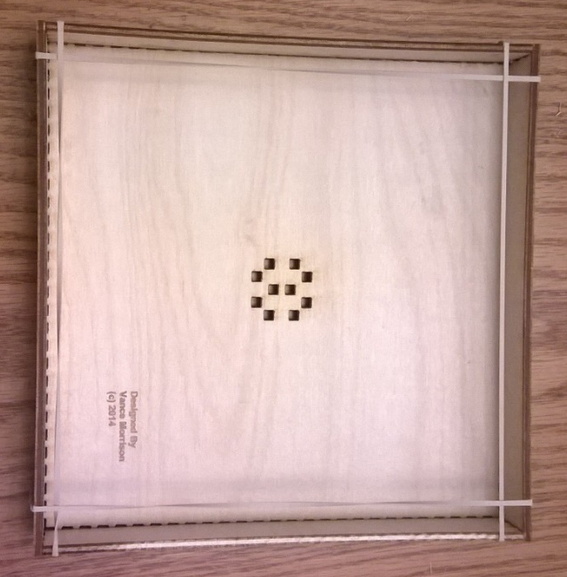
Finally rubber bands are very useful for holding the tray sides together as the glue dries. What I did while assembling is glue one edge then dry-fit the other sides and use rubber bands until the first side dries. Then do the next. The last two can usually be glued at the same time.
Attach the Trunk to the Tray
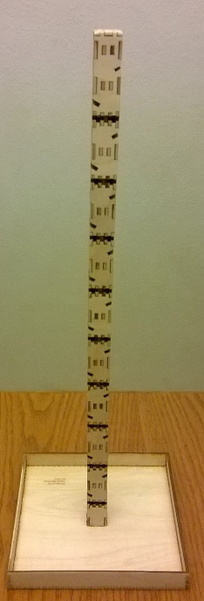
Once the tray is complete, you can go ahead and glue the finish (and sanded) trunk to the finished tray. It is usually best if you clamp the trunk upside down (or put it between two couch cushions), while the glue dries so that the trunk dries straight up and down. The result is shown below.
Glue in the Leaves
After the trunk / Tray is assembled there is only one final step, gluing in the leaves. Ideally these dry-fit snugly (you in fact scaled the drawing precisely so this would happen).
To start the gluing you can start with the smallest 4 leaves and run a thin bead of glue along BOTH sides at the bottom as well as the bottom edit. Also run some glue in the channel in the trunk and ideally use a brush to spread the glue evenly. You should use some care to use just the right amount of glue and because from here on any glue that oozes out will probably stain some visible wood that will be hard to sand. Thus do use come care.
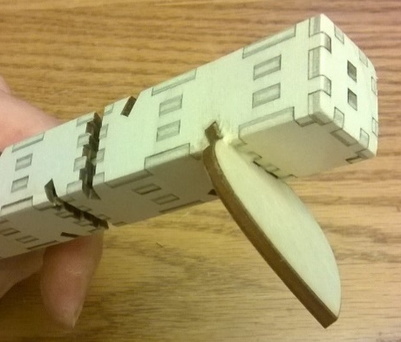
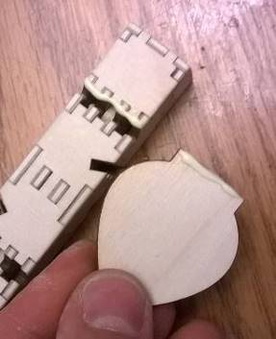
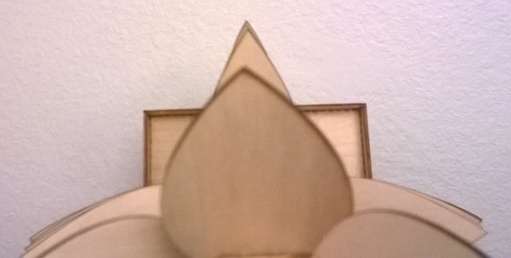
Once you have done the smallest leaf, glue in the leaves starting with the biggest. As you do so you should be sighting down from the top to insure that all the leaves tips form a straight line. This insures that you are seating each leave well and none of them are askew.
Congratulations You Are Done!
Gluing in the leaves is the last step. After it dries, go get a marble and try it out!